AstroNvim Configuration and Shortcuts
My Neovim config based on AstroNvim.
This document outlines various shortcuts and commands for efficient usage.
Screenshots
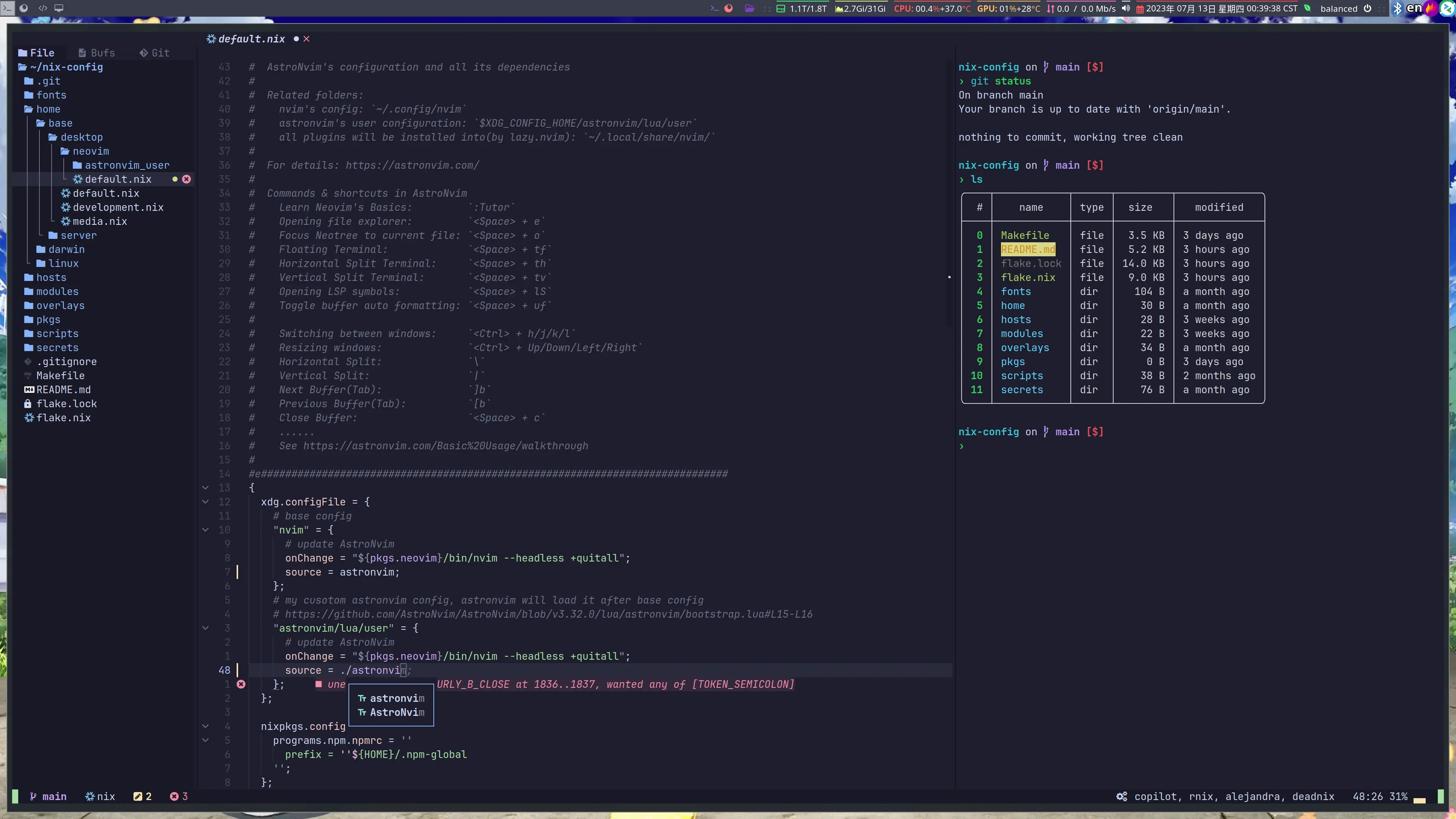
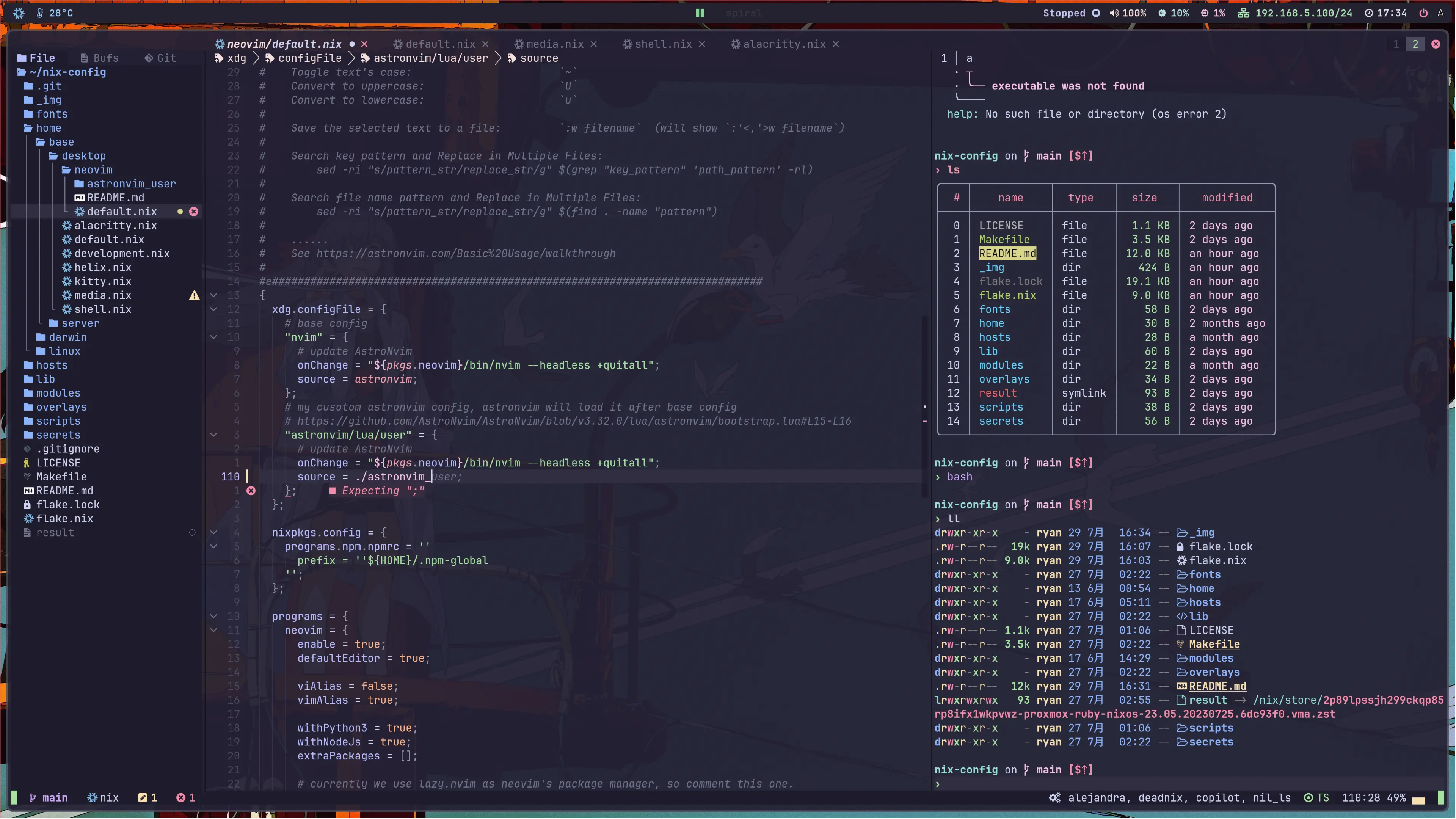
Configuration Structure
| Description |
Standard Location |
My Location |
| Nvim's config |
~/.config/nvim |
astronvim's github repository, referenced as a flake input in this flake. |
| AstroNvim's user configuration |
$XDG_CONFIG_HOME/astronvim/lua/user |
./astronvim_user/ |
| Plugins installation directory (lazy.nvim) |
~/.local/share/nvim/ |
The same as standard location, generated and managed by lazy.nvim. |
For more details, visit the AstroNvim website.
Visual Modes
| Action |
Shortcut |
| Toggle visual mode |
v |
| Toggle visual block mode |
<Ctrl> + v (select a block vertically) |
Text Manipulation
Commands & Shortcuts
| Action |
Shortcut |
| Learn Neovim's Basics |
:Tutor |
| Open file explorer |
<Space> + e |
| Focus Neotree to current file |
<Space> + o |
| Floating Terminal |
<Space> + tf |
| Horizontal Split Terminal |
<Space> + th |
| Vertical Split Terminal |
<Space> + tv |
| Open IPython REPL |
<Space> + tp |
| Toggle line wrap |
<Space> + uw |
| Show line diagnostics |
gl |
| Show function/variable info |
K |
| Go to definition |
gd |
| References of a symbol |
gr |
Window Navigation
- Switch between windows:
<Ctrl> + h/j/k/l
- Resize windows:
<Ctrl> + Up/Down/Left/Right
- Note: On macOS, conflicts with system shortcuts
- Disable in System Preferences -> Keyboard -> Shortcuts -> Mission Control
Splitting and Buffers
| Action |
Shortcut |
| Horizontal Split |
\ |
| Vertical Split |
| |
| Next Buffer (Tab) |
]b |
| Previous Buffer (Tab) |
[b |
| Close Buffer |
<Space> + c |
Editing and Formatting
| Action |
Shortcut |
| Toggle buffer auto formatting |
<Space> + uf |
| Format Document |
<Space> + lf |
| Code Actions |
<Space> + la |
| Rename |
<Space> + lr |
| Opening LSP symbols |
<Space> + lS |
| Comment Line(support multiple lines) |
<Space> + / |
| Open filepath/URL at cursor(neovim's builtin command) |
gx |
| Find files by name (fzf) |
<Space> + ff |
| Grep string in files (ripgrep) |
<Space> + fw |
Sessions
| Action |
Shortcut |
| Save Session |
<Space> + Ss |
| Last Session |
<Space> + Sl |
| Delete Session |
<Space> + Sd |
| Search Session |
<Space> + Sf |
| Load Current Directory Session |
<Space> + S. |
Debugging
Press <Space> + D to view available bindings and options.
Find and Replace
| Action |
Command |
| Replace in selected area |
:s/old/new/g |
| Replace in current line |
Same as above |
| Replace in whole file |
:% s/old/new/g |
| Replace with regex |
:% s@\vhttp://(\w+)@https://\1@gc |
\v means means that in the regex pattern after it can be used without backslash escaping(similar to python's raw string).\1 means the first matched group in the pattern.
Replace in the specific lines
| Action |
Command |
| From the 10th line to the end of the file |
:10,$ s/old/new/g or :10,$ s@^@#@g |
| From the 10th line to the 20th line |
:10,20 s/old/new/g |
The postfix(flags) in the above commands:
g means replace all the matched strings in the current line/file.c means ask for confirmation before replacing.i means ignore case.
Search and Replace Globally
| Description |
Shortcut |
| Open spectre.nvim search and replace panel |
<Space> + ss |
Search and replace in command line(need install sad first) |
find -name "*.nix" | sad '<pattern>' '<replacement>' | delta |
Surrounding Characters
| Action |
Shortcut |
Description |
| Add surrounding characters |
ysiw' |
Add ' around the word under cursor |
| Delete surrounding characters |
ds' |
Delete ' around the word under cursor |
| Change surrounding characters |
cs'" |
Change ' to " around the word under cursor |
Text Manipulation
| Action |
|
| Join Selection of Lines With Space |
:join |
| Join without spaces |
:join! |
| Join with LSP intelligence(treesj) |
<Space> + j |
| Split Line into Multiple Lines(treesj) |
<Space> + s |
Convert Text Case
| Action |
|
| Toggle text's case |
~ |
| Convert to uppercase |
U |
| Convert to lowercase |
u |
Miscellaneous
| Action |
|
| Save selected text to a file |
:w filename (Will show :'<,'>w filename) |
| Show all Yank History |
:<Space> + yh |
| Show undo history |
:<Space> + uh |
Additional Resources
For more detailed information and advanced usage, refer to:
- AstroNvim walkthrough
- ./astronvim_user/mapping.lua
- All the plugins' documentations


